Link to Windows
Microsoft CorporationProductivity
4.062.38K Reviews
- Version
- 1.26102.152.0
- Installs
- 1.00B
- Age Rating
- Everyone
Screenshots
Our Review of Link to Windows
 Analysis by Appyee
I find Link to Windows most useful when I want my phone and PC to feel like parts of the same workspace, rather than two devices I have to check separately. It is a free productivity app from Microsoft Corporation, and its central appeal is practical: bring selected phone activity to a Windows computer so I can keep working without reaching for my handset every few minutes. That convenience is real, but it depends on a stable connection and on the parts of the experience I actually use.
What to expect from the connection
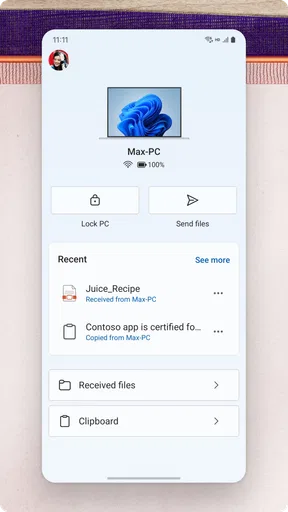
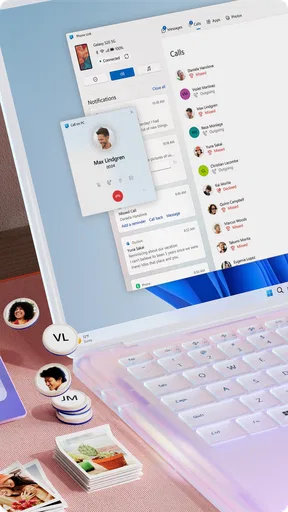
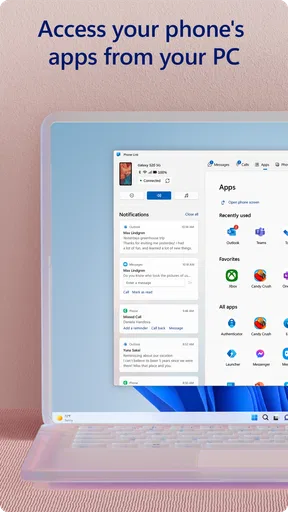
Think of it as a companion for everyday handoffs, not a replacement for your phone. Once paired, it can bring notifications, calls, apps, photos and texts into the PC experience. That can make a desk-based day feel less interrupted, especially when a message arrives while I am writing or working through a browser tab. The key benefit is reducing small context switches, not adding a new place to manage everything.
The app has a 3.8 average from around 1.2 million ratings, and it has passed 1 billion installs. Those figures suggest that it is widely used, but they do not guarantee the same results on every phone and PC. I would judge it by the specific tasks you need: checking a text, handling a call, or moving a photo can be worthwhile even if you never use every available option.
For a first-time user, it helps to decide on one clear goal before setup. If you want to answer a message from your computer, start there; if your main reason is transferring pictures, make that your first test. This keeps the initial experience focused and makes it easier to tell whether the pairing is working as intended.
Getting Started with Ease
First things first, installing Link to Windows is a breeze. Simply grab it from the Google Play Store, and you're halfway there. Once installed, the app guides you through a straightforward setup process, syncing your phone with your Windows 10 or 11 PC using the "Your Phone" app. No tech wizardry required—just follow the prompts and you're set!
Make setup easier on yourself
Before pairing, have the PC nearby and make sure you can sign in where the setup asks. Follow the prompts on both screens rather than assuming that installing the phone app alone completes the connection. If you run into trouble, pause and check that you are pairing with the Windows computer you intend to use; repeating setup in a hurry can make it harder to tell which step needs attention.
Expect to review access requests as you turn on the functions you want. A request to handle a particular kind of phone activity is relevant to that feature, so you can make choices deliberately instead of enabling everything without thinking. If you decide later that a feature is not useful, revisit the phone’s app permissions and connection settings rather than leaving access enabled just out of habit.
The app is free, rated for Everyone, and its current version is 1.26051.98.0; it first appeared on Dec 16, 2015. The minimum operating-system requirement is Android 10. Those basics make it easier to check whether it is a sensible install for your phone before spending time on pairing. On the PC side, the original setup flow refers to Windows 10 or 11 and the Your Phone app.
Try one useful task first
My recommended first test is a low-stakes one: let a notification arrive while the phone is connected and see whether it appears on the PC. Then try responding to a text if that is part of your routine. A successful small action is a better setup check than opening every feature at once, because it shows whether the devices are communicating before you depend on the connection for something important.
A realistic example is a work session in which your phone is charging across the room. You can glance at an incoming notification on the computer, decide whether it needs attention, and handle a text without stopping your task to pick up the phone. I would still keep the handset accessible for anything time-sensitive; the app is a convenience layer, not a reason to assume every alert will always arrive instantly.
Features that Stand Out
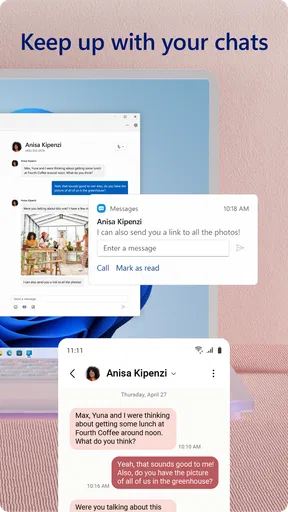
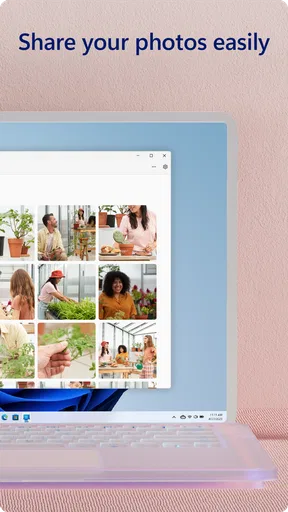
Once everything is connected, you'll find a host of features designed to make your life easier. From viewing notifications on your PC to sending texts without picking up your phone, it’s like having your phone screen right on your computer. One of my favorite features is the ability to drag and drop photos directly into my PC folders. It's a small thing, but it saves so much time.
That photo workflow is especially handy when I want a few recent pictures in a project folder without turning a quick transfer into a cable hunt or a separate import routine. I would use it for a handful of images needed for a document or a message, rather than treating it as a full photo-backup system. For a large archive or a deliberate backup, a dedicated transfer or cloud-storage workflow is usually easier to organize and verify.
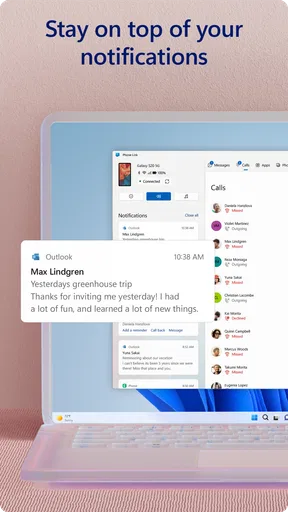
Notifications can also be useful as a filter, not just as a mirror. I find it better to allow the alerts that help me decide whether to pause, then keep less useful interruptions on the phone. That way, the PC stays a work surface instead of becoming another stream of distractions. The practical payoff comes from choosing what deserves attention on the larger screen.
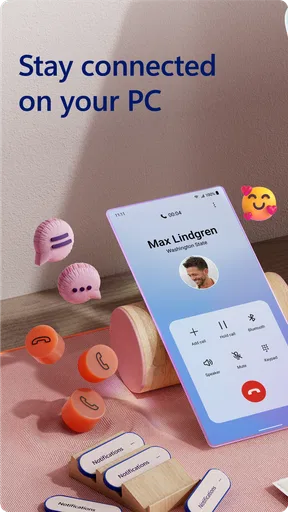
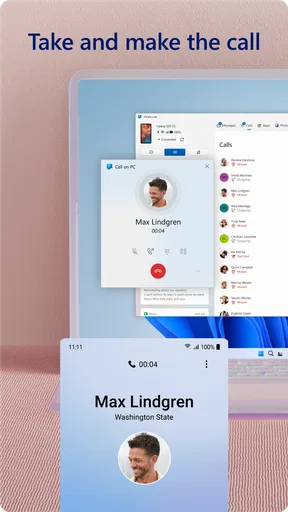
Another standout feature is the ability to make and receive calls directly from your PC. It's incredibly convenient, especially if you're someone who spends a lot of time at your desk. Just make sure your PC has Bluetooth capability for this to work smoothly.
Calls from a computer make the most sense when I already have a headset or speakers nearby and can comfortably continue working. They are less compelling if I move around often, prefer using the phone’s controls, or do not want a conversation audible in a shared room. I would test a brief, non-urgent call before relying on the setup for an important conversation, so I know the audio path feels right in my own workspace.
Where it fits beside other options
Compared with picking up the phone for every message, this app can save repeated little interruptions. Compared with a cable, its appeal is ongoing access to selected phone activity rather than a one-time file transfer. And compared with keeping separate messaging windows open, the connection can make notifications and texts feel closer to the device where they originated. The trade-off is that it is tied to a Windows PC and a paired phone, so it is not the universal answer for someone moving between different computer platforms.
If your main need is simply to copy a large batch of files, a cable or a dedicated file-transfer method may be more predictable. If you want a way to manage phone activity from a computer you use every day, the broader connection is more attractive. I see the app as a complement to those alternatives: use it for quick interactions and use a focused transfer method when you need careful control over lots of files.
A Few Hiccups
While Link to Windows is packed with useful tools, it's not without its quirks. Occasionally, the connection can be a bit finicky, especially if there are updates to either the app or your operating system. I've had a couple of instances where I had to re-sync my phone, which can be a tad annoying.
When something stops appearing, I would troubleshoot one feature at a time rather than immediately unlinking and rebuilding the whole connection. Check whether the phone is still paired, then test a notification or text before checking calls or photos. That narrows down whether the issue is the connection overall or one part of it, and can save repeating setup unnecessarily.
Another thing to note is that the app tends to drain the phone's battery faster than usual. It's not a dealbreaker, but something to keep in mind if you're away from a charger for extended periods.
That trade-off matters most on a long day away from power. If you only need the connection occasionally, you can make it part of a desk routine rather than keeping every feature active all the time. I would also pay attention to whether the convenience is worth the extra battery use on your particular phone; the answer can differ depending on how often you rely on calls, alerts, and other connected activity.
There is also a simple expectation to set: the PC view does not make the phone irrelevant. Some actions are more comfortable on the handset, and a PC connection can be less convenient when you are away from your desk or using a computer you do not control. For people who want their phone activity to remain entirely separate from their computer, that close integration may feel like extra complexity rather than a benefit.
Privacy and Security
In the age of data privacy concerns, I know security is on everyone's mind. The good news is that Microsoft seems to take this seriously. The app requires you to sign in with a Microsoft account, and all data is encrypted during transmission. However, it’s always wise to review the permissions the app requests and ensure you’re comfortable with them.
I would be particularly thoughtful about notifications and texts if other people can see your PC screen. A shared desk, a family computer, or a screen visible during a meeting changes the privacy calculation, even when the connection itself is working as expected. Consider which content you want to surface on the computer and make a habit of locking the PC when you step away.
For the same reason, pairing is best done on a computer you trust and use regularly. If you are borrowing a PC, the convenience of bringing phone activity onto it may not outweigh the effort of signing in and managing what appears there. This is one of the cases where the usual alternative—keeping the phone in hand—can be the more comfortable choice.
Who will get the most from it
I would recommend giving it a try if you spend long stretches at a Windows desk, often receive texts while working, or regularly need a quick way to bring a few phone photos into PC folders. It is also a good fit for someone who wants calls and notifications close at hand but does not want to keep checking a phone screen. The strongest case is a repeated daily routine, where saving several small interruptions adds up to a smoother workday.
I would skip it if you rarely use a Windows computer, strongly prefer keeping phone and PC activity separate, or mainly need a dependable way to move large collections of files. It may also be a poor fit if battery life is already a priority and the extra connection does not solve a problem you actually have. Installing another companion app only makes sense when its regular convenience outweighs the setup and upkeep.
Final Thoughts
Overall, Link to Windows is a solid choice for anyone looking to integrate their Android phone with their Windows PC. While it has a few minor issues, the convenience it offers far outweighs them. Whether you're answering texts from your computer or dragging and dropping files with ease, this app has quickly become a staple in my daily routine.
If you're ready to give it a shot, you can download it from the Google Play Store and start enjoying a more connected digital life.
Privacy and Permissions
See what permissions an app requests and how it handles your data.
- Identity
- find accounts on the device, add or remove accounts
- Contacts
- find accounts on the device, read your contacts
- Location
- approximate location (network-based), precise location (GPS and network-based)
- SMS
- read your text messages (SMS or MMS), send SMS messages
- Phone
- read call log, read phone status and identity
- Photos/Media/Files
- read the contents of your USB storage, modify or delete the contents of your USB storage
- Storage
- read the contents of your USB storage, modify or delete the contents of your USB storage
- Camera
- take pictures and videos
- Microphone
- record audio
- Wi-Fi connection information
- view Wi-Fi connections
- Device ID & call information
- read phone status and identity
- Other
- view network connections, create accounts and set passwords, pair with Bluetooth devices, access Bluetooth settings, connect and disconnect from Wi-Fi, full network access, close other apps, change your audio settings, control Near Field Communication, run at startup, draw over other apps, use accounts on the device, control vibration, prevent device from sleeping, set an alarm
Verdict
Strengths of Link to Windows
- Seamless integration with Windows PC.
- Easy file transfer between devices.
- Access phone apps on PC.
- Efficient notifications management.
- Supports multiple devices.
Limitations of Link to Windows
- Limited app compatibility.
- Requires constant Bluetooth connection.
- Some features need Wi-Fi.
- Battery drain on prolonged use.
- Occasional sync delays.
Other Releases by Microsoft Corporation
View All
Microsoft OneDrive
Productivity4.6

Microsoft OneNote: Save Notes
Productivity4.6

Microsoft PowerPoint
Productivity4.8

Microsoft Outlook
Productivity4.3
Similar Picks in This Category
View All
Google Calendar
Google LLC4.6

Google Drive
Google LLC4.3

Google Assistant
Google LLC3.9
Microsoft OneDrive
Microsoft Corporation4.6

Samsung Calendar
Samsung Electronics Co., Ltd.4.1
Microsoft OneNote: Save Notes
Microsoft Corporation4.6
You May Also Like
View All
Frequently Asked Questions
What is Link to Windows and how does it work?
Link to Windows is an app that allows seamless connectivity between your Android device and a Windows PC. By installing the app on your Android phone and pairing it with the Microsoft Your Phone app on your PC, you can sync notifications, access apps, and transfer files. This integration offers enhanced productivity by allowing you to manage your phone's features directly from your computer.
Is Link to Windows compatible with all Android devices?
Link to Windows is compatible with most Android devices running Android 7.0 or later. However, certain features may vary depending on your phone's brand and model. For the best experience, it's recommended to have the latest version of both the Android app and the Windows software installed. Some manufacturers, like Samsung, offer additional functionalities.
Do I need a Microsoft account to use Link to Windows?
Yes, a Microsoft account is required to use Link to Windows. This account allows you to synchronize your phone with the Microsoft Your Phone app on your PC. Setting up a Microsoft account is simple and free, offering a unified experience across Microsoft services and enhancing the app's functionality.
What features are available with Link to Windows?
Link to Windows offers a variety of features, including accessing recent photos, managing notifications, sending and receiving text messages, and making calls directly from your PC. Additionally, certain Android devices support app streaming, allowing you to use your phone's apps on your computer screen. This broad feature set ensures enhanced productivity and convenience.
Is Link to Windows secure to use?
Link to Windows prioritizes user privacy and security. Data transferred between your phone and PC is encrypted, ensuring that your information remains confidential. It also requires you to give explicit permissions for accessing various phone features, allowing you to control what data is shared. Regular updates enhance security measures, maintaining a safe user experience.
